Are you thinking of selling your smartphone, or would you like to give your phone to family members or friends?
If yes, then let’s get started. A few checks need to be done before you give it away.
Today’s smartphones contain more than call records and messages.
I use my mobile phone for communication purposes, to perform payment transactions, to capture beautiful moments, to keep updated on exciting topics, for entertainment, to organize myself, to shop, etc.
As information accumulated on our mobile devices for months/years, it would be worth reviewing it before giving it away.
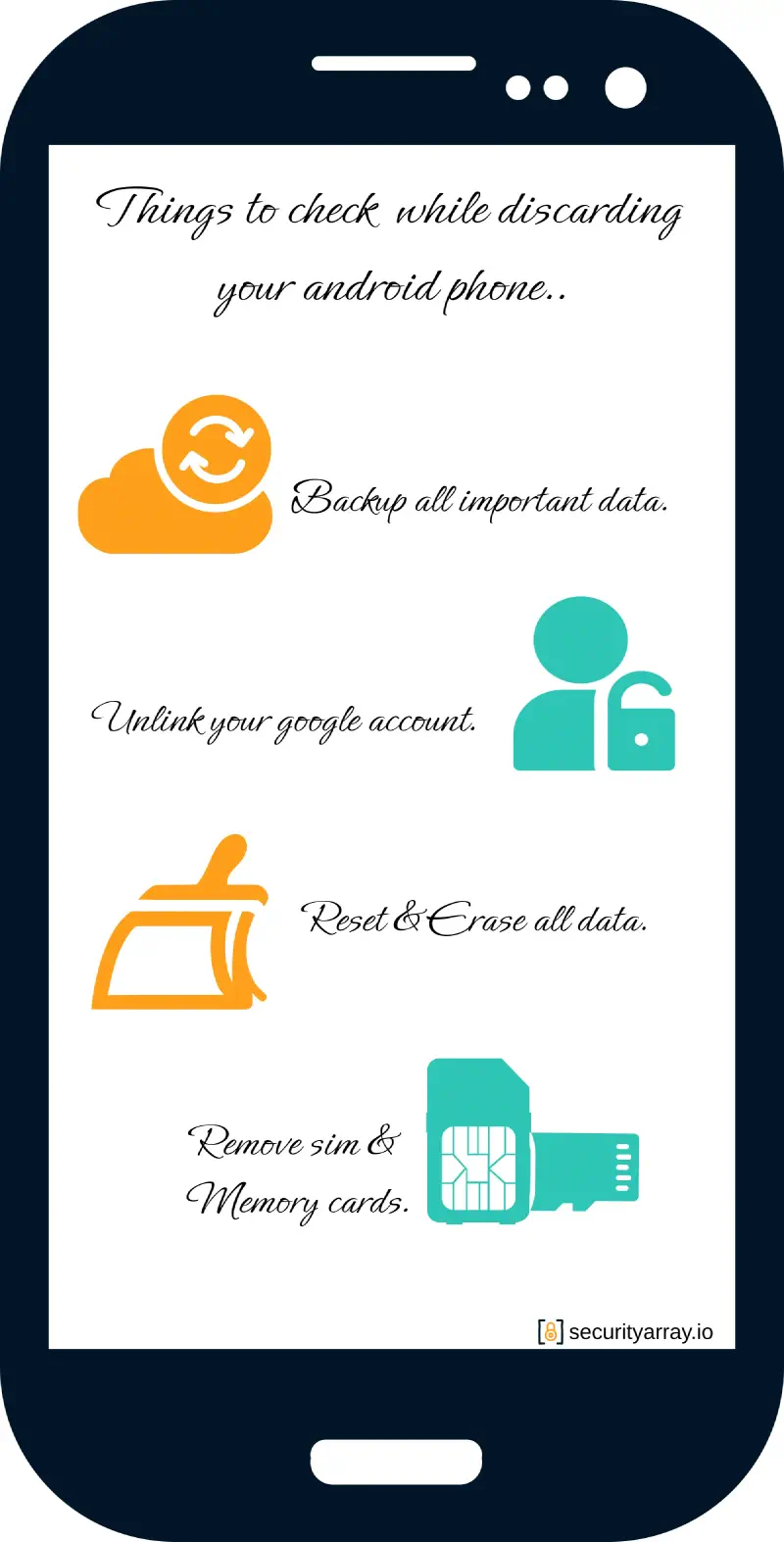
Backup Data #
As of today, most users prefer to store information in their respective cloud user accounts. Still, it would be better to re-verify and ensure all the data synchronization is up-to-date.
Navigate to Settings –> Accounts –> Select your primary sync Gmail account –> Check Sync on for all items enabled.
Followed by verifying when was the last sync performed. Click on account preferences as shown below and select Account Sync status.


The rest of the users who would like to keep the data locally can connect the phone to a Laptop/Desktop and copy all the data to a local drive.
Plug the USB charging cable into your device and select File Transfer/Android Auto by clicking on the USB Preferences in the notification bar.
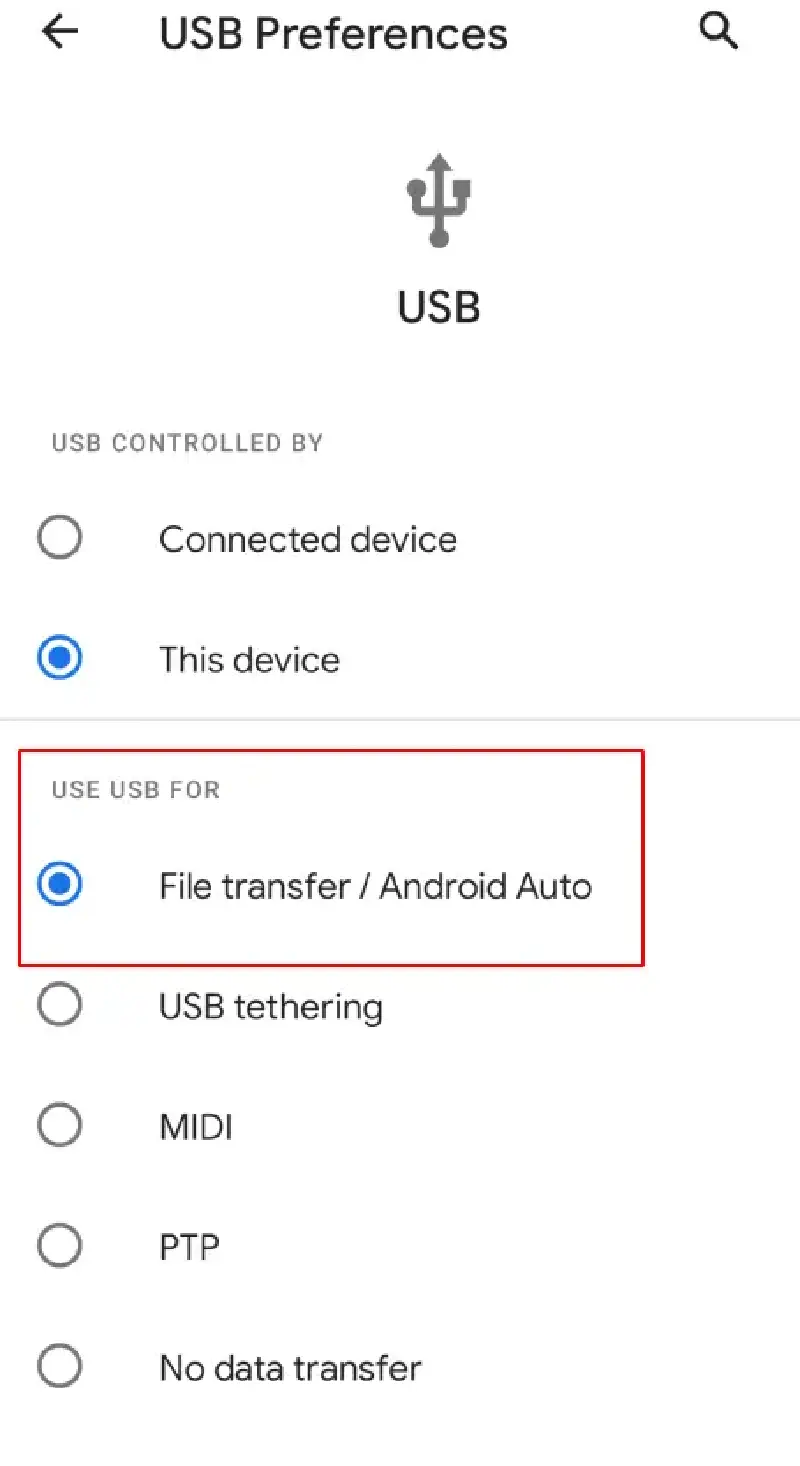
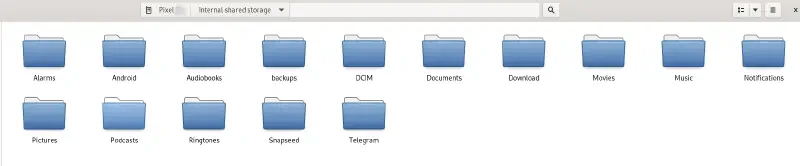
After connecting the device, the system will auto-detect and mount the shared folder to your operating system. Once opening the folder, all the files will be displayed, as shown below.
Ensure all the critical data is copied onto the local storage.
A general rule in information security is to keep at least two backups so that even if one backup fails in an unexpected scenario, the second backup copy helps restore your data.
Unlink your Google Account #
Once all the data of calls, messages, documents, etc., are backed up, the next step is to log into your Google account and remove all the links associated with the mobile device.
This can be done from a mobile or from the web browser too. Go to Gmail –> Accounts –> Security –> Your Devices.
Select the phone you want to remove, click on Sign Out, and remove your Google account from the phone.


Reset and erase all data. #
Now it’s time to reset and erase all the data. We can wipe out all settings, data stored on the device, etc.
Navigate to Settings –> System –> Reset Options –> Erase all data (factory reset)


Now the phone wipes out all the data on the device and will boot up.
Remove SIM & Memory Cards #
Once you are confident that all the above steps are ensured, the last step would be to remove your SIM card and memory cards, if any.
If you use a carrier-connected device, work with your vendor to deactivate the service and ensure all pending bills are paid.
I hope you find the above article helpful!